
Folder watch
Save a file with the fax number in its name, such as 0471123456_Invoice.pdf – Fritten&Fax faxes it and files the result.
Fritten&Fax for Windows
Fax from any program, receive faxes as PDF, search and forward them – through your FRITZ!Box (CAPI) or a SIP number. From a single desk to a terminal server, with no cloud and no subscription.

Fritten&Fax Free is also available in the Microsoft Store.
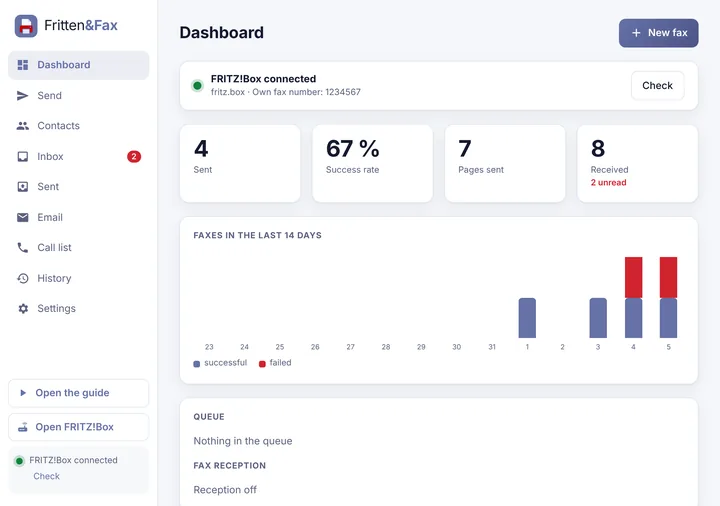
Send
Whether from your ERP system, from Word or as a PDF from your inbox: Fritten&Fax turns any document into a clean fax – with cover page, automatic retries and transmission report.
Drag files into the window, choose recipients, send. Fritten&Fax converts PDFs, images and Office documents into fax pages and sends them one after another from the queue.
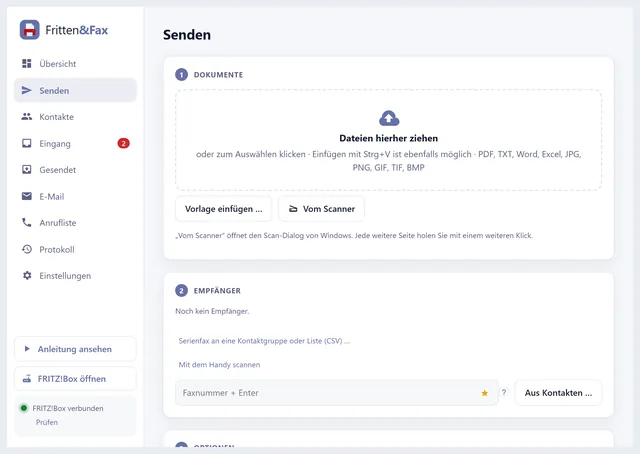
Fritten&Fax sets up a printer. Whatever you print to it appears as a fax ready to send – from any application that can print.
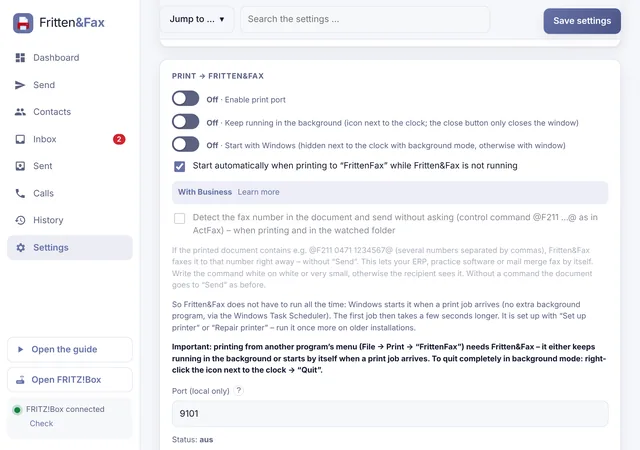
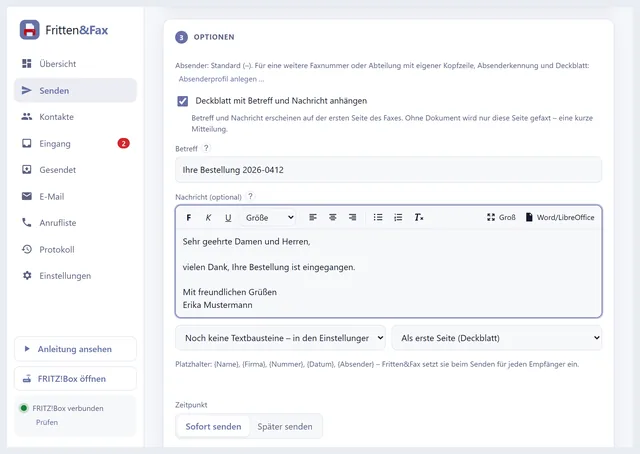
A clean cover page with logo, company block, subject and message – or just a message without an attachment. With Pro, as many cover page templates and sender profiles as you need.
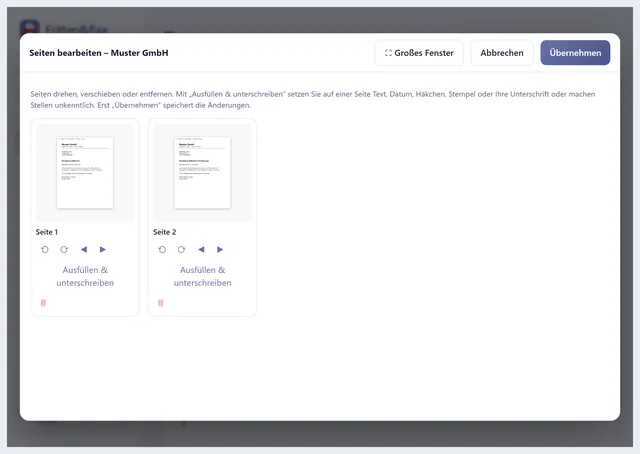
Before sending, rotate, reorder or delete pages, add text, dates, ticks and stamps, and truly redact passages – not just cover them up.
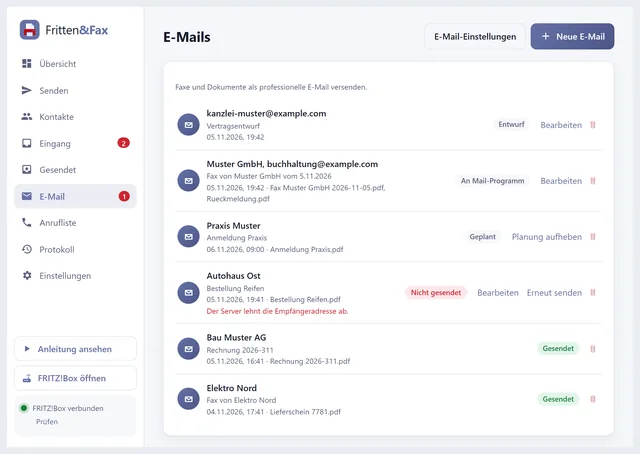
Not every recipient has a fax machine: the “Email” tab sends faxes and documents as a proper e-mail – via your own mail server or your mail program. Also available straight from a fax in the inbox, under “Sent” and from a document.
Receive
With Pro, Fritten&Fax answers faxes itself, via CAPI or SIP. Every fax is stored as a PDF on your PC, is searchable and, if you like, lands straight in your e-mail inbox.
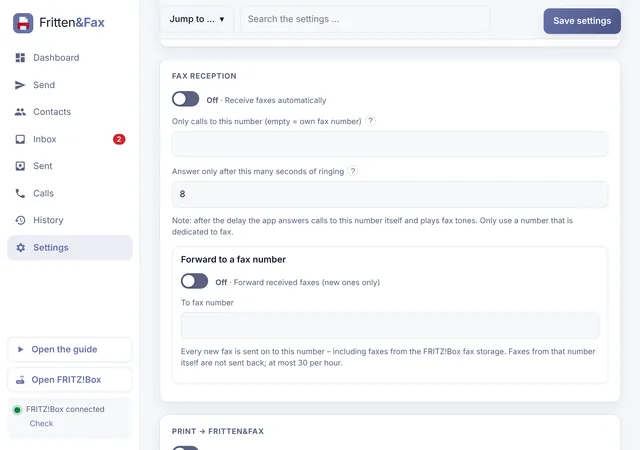
Fritten&Fax registers as a fax machine with your FRITZ!Box or your SIP provider and answers faxes to the number you choose. “Test reception” checks the setup with a test fax.
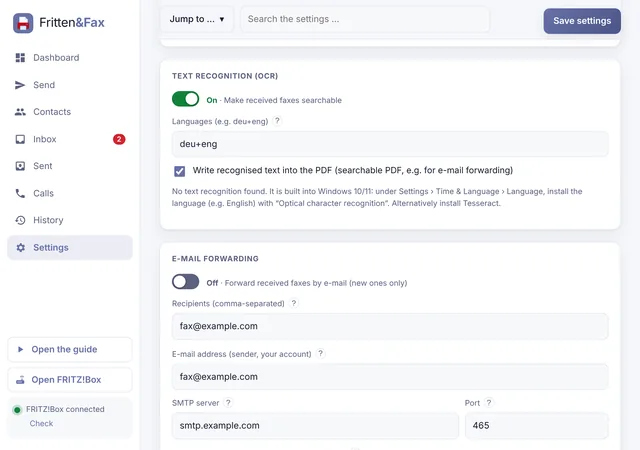
Windows’ built-in text recognition makes every received fax searchable. The PDF gets an invisible text layer – for your archive, too.
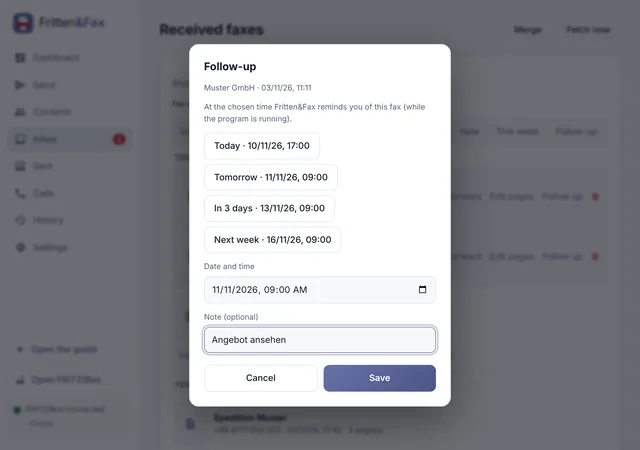
Have faxes come back up for follow-up on a set date, reply directly, or edit and resend them. Nothing gets lost in day-to-day work.
Automation
Pro takes over the routine: files from a folder, e-mails with attachments or whole contact groups become faxes without you lifting a finger.
Save a file with the fax number in its name, such as 0471123456_Invoice.pdf – Fritten&Fax faxes it and files the result.
An e-mail to a dedicated mailbox, fax number in the subject, document attached. The reply reports the result.
To a contact group or a CSV list with placeholders for name and salutation.
After every fax, a PDF report – even in Free, into the default folder. With Pro into a folder of your choice or straight to the printer, and sent faxes filed as PDF.
Your own workflows with AutoHotkey v2, per contact or in general – switched off by default.
Fax from the browser of another device on your home network and view received faxes – password-protected, off by default.
With your FRITZ!Box’s WireGuard file, the PC connects to the office while you’re away – as its own Windows service.
Pass on received faxes automatically by e-mail or to another fax number.
PC and phone
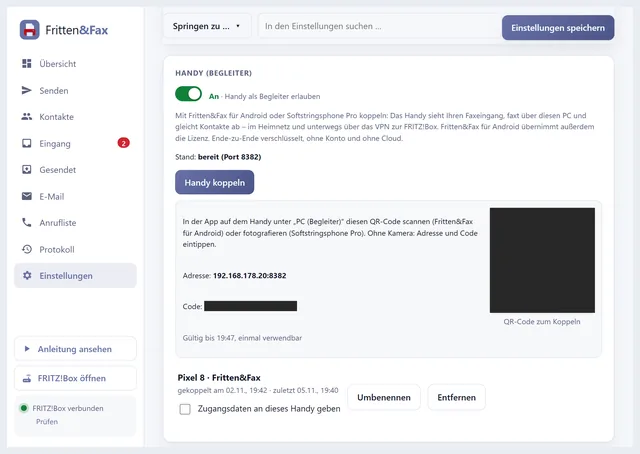
Pair Fritten&Fax for Android or Softstringsphone Pro once with a QR code. With Pro, the phone faxes through the PC, sees its fax inbox, syncs the address book and scans documents straight into the draft on the PC.
Choose “Pair phone” on the PC, scan the QR code with your phone – done. Without a camera, use the address and code. The connection is end-to-end encrypted and runs directly between your devices.
Business
Business runs as a service on the server, even without a logged-in user. It distributes faxes to departments, integrates terminal servers and talks to your business software.
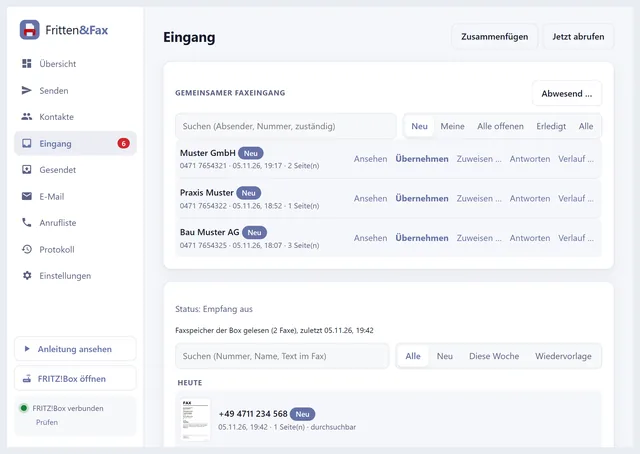
Every fax has a status: new, taken over by …, done. Assign, add notes, account for absences – and get reminders about overdue faxes, by e-mail too.
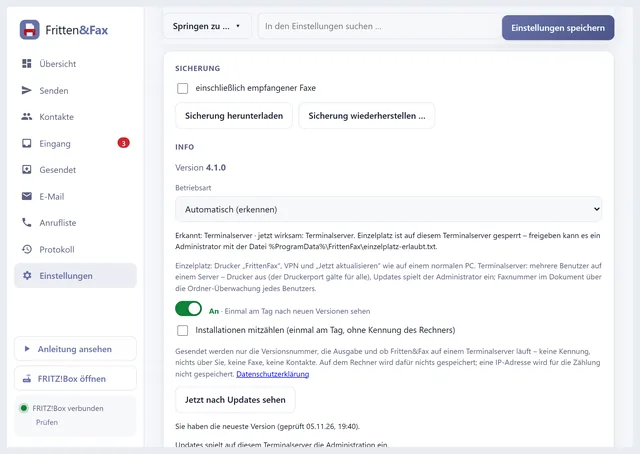
On a terminal server, each user and each session runs its own program. Defaults set starting values and locked fields for everyone – such as the header line “Company – Name”.
A Windows service answers faxes without a logged-in user and distributes them to folders, e-mail or printers by the number called. If delivery fails, it retries for up to 24 hours. Printing comes with feedback: if a printer does not print, you get a message – old faxes never come out days later.
Send faxes from your own software and receive events – locally on the server, with a key and signed webhooks.
Trigger faxes via job files, the command line or data fields in the document – for business software without an interface.
Fritten&Fax counts the users of the last 30 days. If the licence is exceeded, you get a notice – never a lockout.
Technical data
| Operating system | Windows 10 and 11 (64-bit); Windows Server with Remote Desktop Session Host (Business) |
|---|---|
| Sending routes | FRITZ!Box via CAPI over TCP (port 5031, switch on with #96*3*) or SIP – as an IP phone in the FRITZ!Box or directly with your provider |
| Fax protocol | T.30 in software, V.17, V.29 and V.27ter at 14,400, 9,600 and 4,800 bit/s, ECM error correction |
| SIP | UDP, TCP or TLS (with certificate verification), digest authentication, G.711 A-law and µ-law, T.38 over UDPTL, optional SRTP; presets for FRITZ!Box, sipgate, easybell and Telekom |
| Resolution | Fine 204 × 196 dpi (default) or normal 204 × 98 dpi, A4, black and white |
| File formats | PDF, TXT, Word, Excel (with Word/Excel or LibreOffice), JPG, PNG, GIF, TIF, BMP; from any program via the printer |
| Text recognition | Windows’ built-in text recognition |
| Forwarding via SMTP (STARTTLS or SSL), e-mail to fax via IMAP (SSL or STARTTLS) | |
| Languages | Interface, cover page, transmission report, guide and setup in German, English, French and Spanish |
| Guide | Illustrated guide with 39 chapters built into the program |
| Licence | Digitally signed key, verified offline, with no activation and no hardware binding |
| Updates | Notice at most once a day, installed only when you click, verified via SHA-256 |
Installation
Download and run the setup for the edition you want. It installs Microsoft’s WebView2 runtime itself if needed.
A wizard asks for CAPI or SIP, your fax number and the sender ID – and checks the connection.
A test fax to your own number confirms that everything works. Optionally, set up the “FrittenFax” printer.
Questions about Windows
No. Fritten&Fax speaks CAPI over TCP directly with the FRITZ!Box. For SIP, CAPI isn’t needed at all.
Via CAPI only with a FRITZ!Box. With other routers you fax via SIP – directly with your telephone provider.
Faxes are sent one after another over one line. The reception service in Business can answer on several channels at once.
No. T.30 fax is black and white; Fritten&Fax optimises photos and text for a clearly legible transmission.
Nothing. Each setup installs over any other; faxes, contacts and settings are kept.
Free costs nothing, for good. Try Pro and Business for 30 days with a trial key.