
Fax via the FRITZ!Box
Fritten&Fax for Android sends via the box’s CAPI and fetches new faxes from its fax storage – on mobile data or hotel Wi-Fi too.
Router VPN · The free helper app
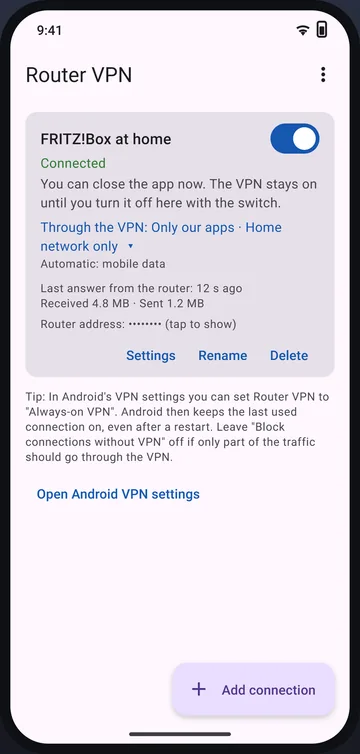
When you’re out, your phone can’t reach your FRITZ!Box – and with it the fax storage, your landline number and the PC in the office. Router VPN builds a WireGuard tunnel straight to your box. Then Fritten&Fax and Softstringsphone Pro fax and call on mobile data just as they do at home.


Or download the APK directly →
What for
Your FRITZ!Box is deliberately not reachable from the internet. Router VPN doesn’t open any ports for this – it connects the phone to the box through an encrypted tunnel. To the box, the phone is then on the home network, and everything works as it does on your own Wi-Fi.
Fritten&Fax for Android sends via the box’s CAPI and fetches new faxes from its fax storage – on mobile data or hotel Wi-Fi too.
The paired phone reaches Fritten&Fax on the office PC: fax via the PC and see its fax inbox. The PC has to be running.
Softstringsphone Pro registers with the box through the tunnel – for outgoing calls and for incoming ones that ring on your phone while you’re out.
If you like, also the FRITZ!Box user interface, a network drive or your smart home – you decide which apps use the tunnel.
How it works
Your FRITZ!Box creates the access itself. Router VPN imports it and uses Android’s VPN function to build the WireGuard tunnel straight to the box. No server of ours is involved.
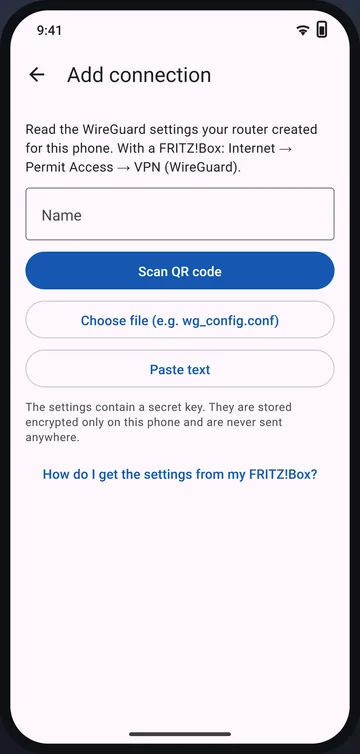
In the box, you create an access for the phone under Internet → Permit Access → VPN (WireGuard). In Router VPN, tap “Add connection” and import it by QR code, as a file or as text.
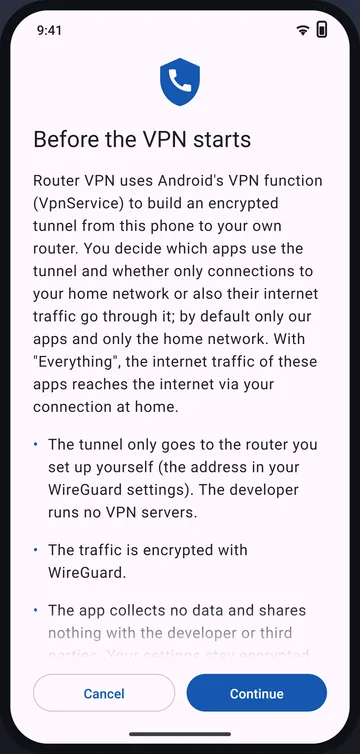
Before the first start, the app shows on the screen “Before the VPN starts” what the VPN does. Only then does Android ask for your permission in its own dialog.
After a few seconds the connection shows “Connected”, with the last answer from the router. The VPN stays on until you switch it off; Fritten&Fax and Softstringsphone Pro use it automatically.
What goes through the tunnel
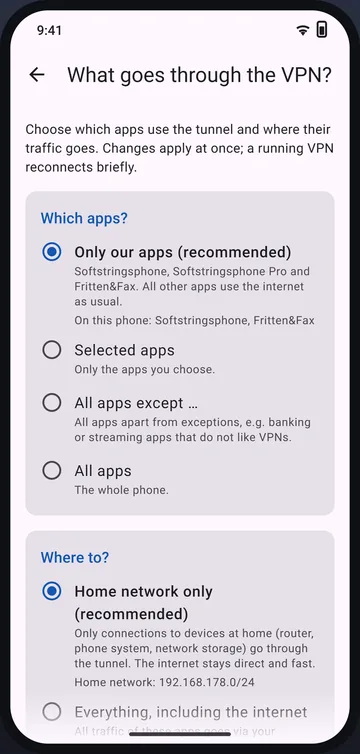
By default only our apps use the tunnel, and only for connections home. The rest of your internet runs directly and fast past the VPN as usual.
For each connection, under “What goes through the VPN?”, you set which apps use the tunnel and whether only the home network or everything goes through it.
Setup
The setup help in the app guides you through every step – with the menu names of the FRITZ!Box.
At home, open http://fritz.box, then Internet → Permit Access → VPN (WireGuard) → “Add (WireGuard) Connection” → “Connect a single device”. The box then shows a QR code and a “Download” button.
Tap “Add connection” and scan the QR code, choose the file wg_config.conf or paste its text.
Toggle on, “Continue” and “OK” in Android. Best tested with Wi-Fi off: after a few seconds it shows “Connected”.
Detailed guide with troubleshootingGo to the Router VPN website
Technical data
| Android | Android 8.0 or later |
|---|---|
| Router | FRITZ!Box with WireGuard from FRITZ!OS 7.50; other WireGuard routers such as OpenWrt, GL.iNet, UniFi or Synology |
| Connection | Public IPv4 address or IPv6; with DS-Lite it works if the mobile network supports IPv6 too |
| Encryption | WireGuard with the official library; access data with AES-256-GCM in the Android Keystore |
| Works with | Fritten&Fax for Android, Softstringsphone Pro and the companion of Fritten&Fax for Windows |
| App languages | German, English, French and Spanish |
| Price | Free, no ads and no in-app purchases |
Questions about Router VPN
No. On your own Wi-Fi the apps reach the FRITZ!Box directly. With “Automatic by network” the VPN rests at home by itself and switches back on when you’re out.
Only if you set it up that way. By default only our apps and only connections to the home network go through the tunnel; everything else runs directly.
No. Router VPN is for the Android phone. From Pro, Fritten&Fax for Windows has its own built-in VPN that connects the PC to the office when you’re out.
Yes. The MyFRITZ!App or the official “WireGuard” app also build a VPN to the FRITZ!Box, and our apps use it just the same. Only one VPN can be on at a time, though.
Google Play only allows Android’s VPN interface in apps whose main purpose is a VPN. That’s why the tunnel lives in Router VPN – free and for all our Android apps.
On Google Play and in the Galaxy Store – or as an APK to install directly.