
Watch folder
Drop a file with the fax number in its name, such as 0471123456_Invoice.pdf – Fritten&Fax faxes it and files the result (Pro).
Fritten&Fax for Mac
Fax from any app, receive faxes as PDF, search and forward them – via your FRITZ!Box (CAPI) or a SIP number. The same editions, the same prices and the same licence key as on Windows, with no cloud and no subscription.
Send
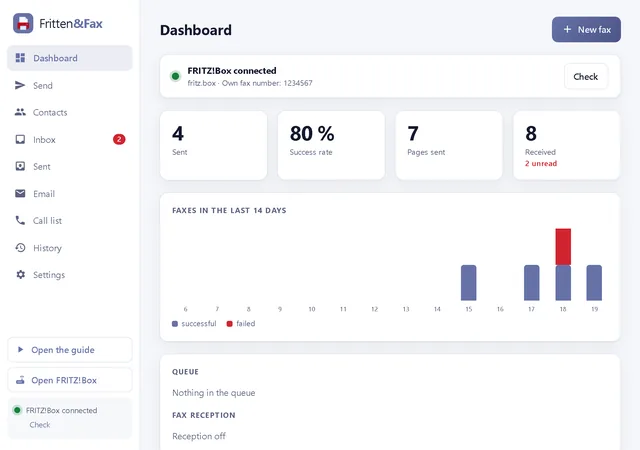
From Pages, from Preview or as a PDF from your inbox: Fritten&Fax turns any document into a clean fax – with cover sheet, retry and transmission report.
Drag files into the window or paste them with ⌘V, choose the recipient, send. Fritten&Fax converts PDF, images and Office documents into fax pages and sends them one after another from the queue.
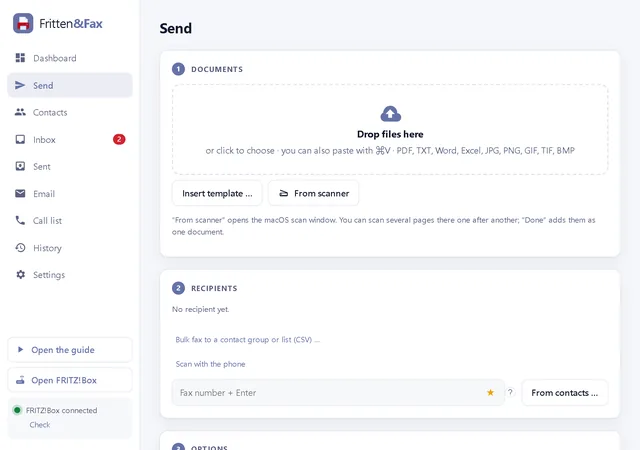
Fritten&Fax sets up a printer in macOS. Whatever you print to it via “File › Print” appears as a fax ready to send – from any app that can print.
Receive
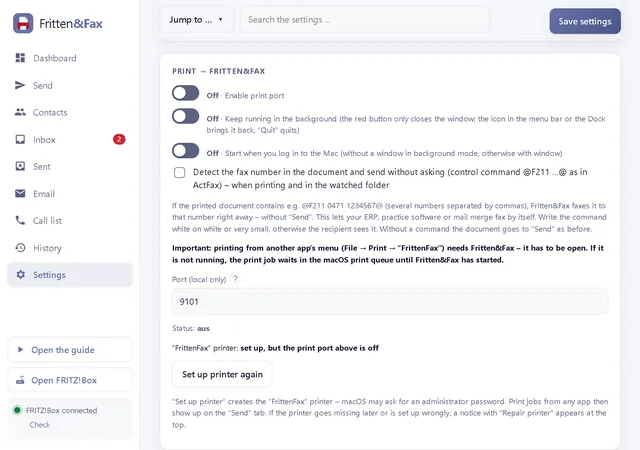
With Pro, Fritten&Fax answers faxes itself, via CAPI or SIP. Every fax is stored as a PDF on your Mac and is searchable. In Free you see the faxes your FRITZ!Box has received itself.
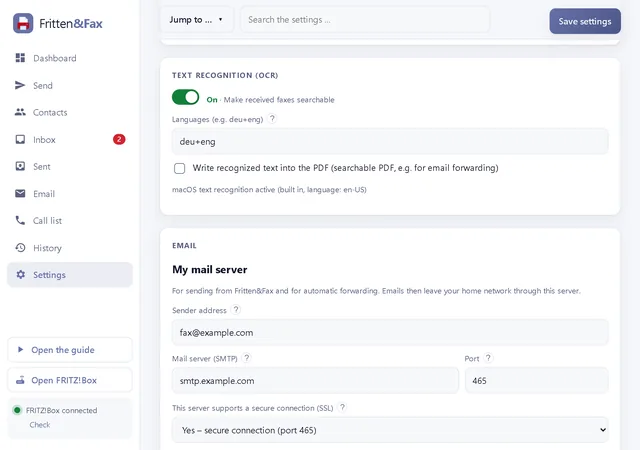
Fritten&Fax registers as a fax machine with your FRITZ!Box or your SIP provider and answers faxes to the chosen number. The text recognition built into macOS makes every received fax searchable – no extra software needed.
Drop a file with the fax number in its name, such as 0471123456_Invoice.pdf – Fritten&Fax faxes it and files the result (Pro).
The red button only closes the window; reception keeps running. A small fax machine in the menu bar or the Dock icon brings the window back; if you wish, Fritten&Fax starts when you log in to your Mac (Pro).
Send faxes and documents as an email – through your own mail server or as a draft in Apple Mail, with the attachment and your signature.
Business
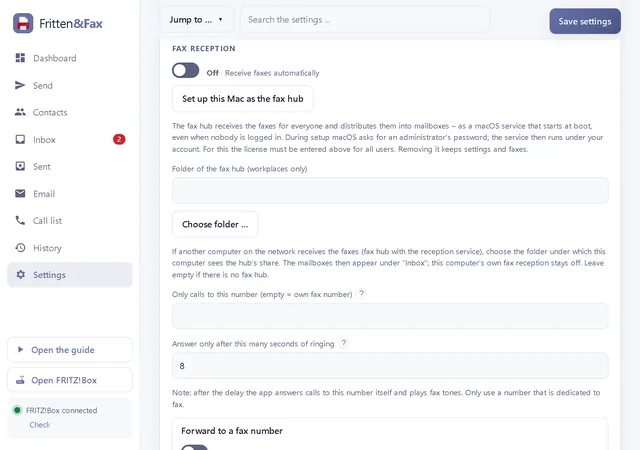
There is no terminal server on the Mac. Instead, one Mac answers the faxes for everyone and sorts them into mailboxes; the other Macs access them through a shared folder. Every workstation can send on its own.
“Set up this Mac as the fax hub” creates the reception service. It runs as a macOS service, starts at boot – even when nobody is logged in – and restarts by itself after an error.
The service sorts by the number called into folders – such as Purchasing and Accounting. Every fax has a status: new, taken by …, done.
On every other Mac, connect to the fax hub's shared folder and choose the “Fax hub folder” in Fritten&Fax – the mailboxes appear under “Inbox”.
Enter the key once for all users of the Mac. Fritten&Fax counts the users of the last 30 days; if the licence is exceeded you get a notice – never a lock.
Technical data
| Operating system | macOS 11 or later; one disk image (.dmg) each for Macs with Apple silicon and for Macs with an Intel processor |
|---|---|
| Sending routes | FRITZ!Box via CAPI over TCP (port 5031, enable with #96*3*) or SIP – with the FRITZ!Box as an IP phone or directly with the provider |
| Fax protocol | T.30 in software, V.17, V.29 and V.27ter at 14,400, 9,600 and 4,800 bit/s, error correction (ECM) |
| Resolution | Fine 204 × 196 dpi (default) or standard 204 × 98 dpi, A4, black and white |
| File formats | PDF, TXT, JPG, PNG, GIF, TIF, BMP; Word and Excel with LibreOffice; from any app via the printer |
| Text recognition | Text recognition built into macOS |
| Your own mail server (SMTP with STARTTLS or SSL) or a draft in Apple Mail | |
| Languages | Interface, cover sheet and transmission report in German, English, French and Spanish |
| Licence | The same key as on Windows: digital signature, checked offline, no activation and not tied to hardware |
| Updates | A notice at most once a day; “Update now” downloads the new disk image, checks it by SHA-256 and replaces the app – only when you click |
Not included on the Mac: VPN to the FRITZ!Box, macros, print service and terminal server mode. Scanning from a scanner (via macOS) and the illustrated in-app manual are included.
Installation
Download the disk image (.dmg) of the edition you want for your Mac, open it and drag “Fritten&Fax” into the “Applications” folder.
A wizard asks for CAPI or SIP, your fax number and the sender ID – and checks the connection.
A test fax to your own number confirms that everything works. Optionally, set up the “FrittenFax” printer.
Questions about the Mac
Yes. The key is the same; Pro is for one user on their computers and phones, Business for the licensed number of users.
Apple menu › “About This Mac”: if it says “Chip”, take the image for Apple silicon; if it says “Processor” with Intel, the one for Intel.
The first time, macOS asks whether Fritten&Fax may access the local network, folders or the FRITZ!Box fax storage. Without “Allow”, the app cannot reach the FRITZ!Box or the files.
No. For several workstations, Business sets up one Mac as the fax hub; the other Macs read the mailboxes through a shared folder.
When you click: Fritten&Fax tells you about a new version, and “Update now” downloads the disk image, checks it and replaces the app. If it is in a folder you may not change, download the disk image and drag the app into the “Applications” folder yourself. Data and settings are kept.
Free is free forever. Try Pro and Business for 30 days with a trial key.